Everything, from install to the moment it matters.
What the app does, how to set it up, which two keys you press during the call, what the other side can and cannot see, and what to do when something isn’t working. Read it end to end before your first session, or jump straight to the part you came for.
It listens to them, and answers for you.
Before any of the setup, it is worth being precise about what the app actually does — because most of the questions we get are really questions about this.
Your microphone is not in this diagram — it is never opened
It hears the other side of the call, not you
The desktop app captures your computer's audio output — the voice coming out of your speakers. That is the interviewer, the panel, the client. Your microphone is never opened, and your own speech is never transcribed or sent anywhere.
This is not a setting you can get wrong. There is exactly one audio source and one transcription stream, and it is the one playing through your machine.
It works out which parts were questions
A live transcript is a wall of text. The app watches it for the shape of a question and marks the moment one lands, so it can answer the thing you were asked rather than the last thing that was said.
It answers from your material, not from the internet
The answer is generated against the document you uploaded and the details you gave for this specific session. That is what keeps it in your own voice and your own history, instead of producing something generically true and obviously not yours.
You stay in control of when it speaks
Nothing is ever said out loud, typed for you, or sent to anyone. An answer appears on your screen, in a window only you can see, and what you do with it is entirely yours.
Give it something to ground the answers in.
Everything the app says on the day is built from two things you provide here: a document about you, and a short brief about the conversation. This takes about two minutes and only has to be done once per session.
Create your account
Sign up with email or Google. You land on your dashboard, which is where sessions live and where you'll come back to after each call.
Upload your material
Drop in the document that should ground your answers — a résumé or CV for an interview, a thesis or paper for a viva, a brief or deck for a client call. PDF, up to 10 MB. It is parsed automatically; there are no forms to fill in afterwards.
- Everything you upload lives in your Library: two résumés and up to twenty source documents. Any session can be pointed at any of them, so a thesis is uploaded once and reused for every viva.
- Once parsing finishes you'll see what it pulled out — the experience and skills from a CV, the title, structure and key claims from a thesis or a deck. Read that back: it is the cheapest check that the right file was read, and read whole.
Create a session for the conversation
A session is one specific event. Give it a title, the company or institution, the role or topic, and the date and time in your own timezone. Add a description or agenda if you have one — a job posting pasted in here measurably improves what comes back.
- Interview — a job interview, technical or behavioural.
- Viva — a thesis defence or oral examination.
- Meet — a client call, pitch, or any other conversation you'd rather not walk into cold.
Pick a tone
Speak as me writes the answer in the first person, as something you could say out loud more or less verbatim. Just the answers strips it back to the facts and the structure, for when you'd rather phrase it yourself. You can change this per session.
Teach it the words it will hear
Live transcription mishears proper nouns it has never seen: a framework, a drug name, your supervisor's surname. The session's steering fields let you hand those over in advance — a short note about the conversation and a list of key terms.
- Keep terms short and specific. Names, products, acronyms, technologies.
- The site suggests terms from your document and job description automatically — add anything it missed.
Worth doing for anything jargon-heavy. A viva or a specialist technical round is where it makes the most visible difference.
The part that runs during the call.
The website is where you prepare. The desktop app is what's actually running on the day — a small always-on-top window that listens and shows answers.
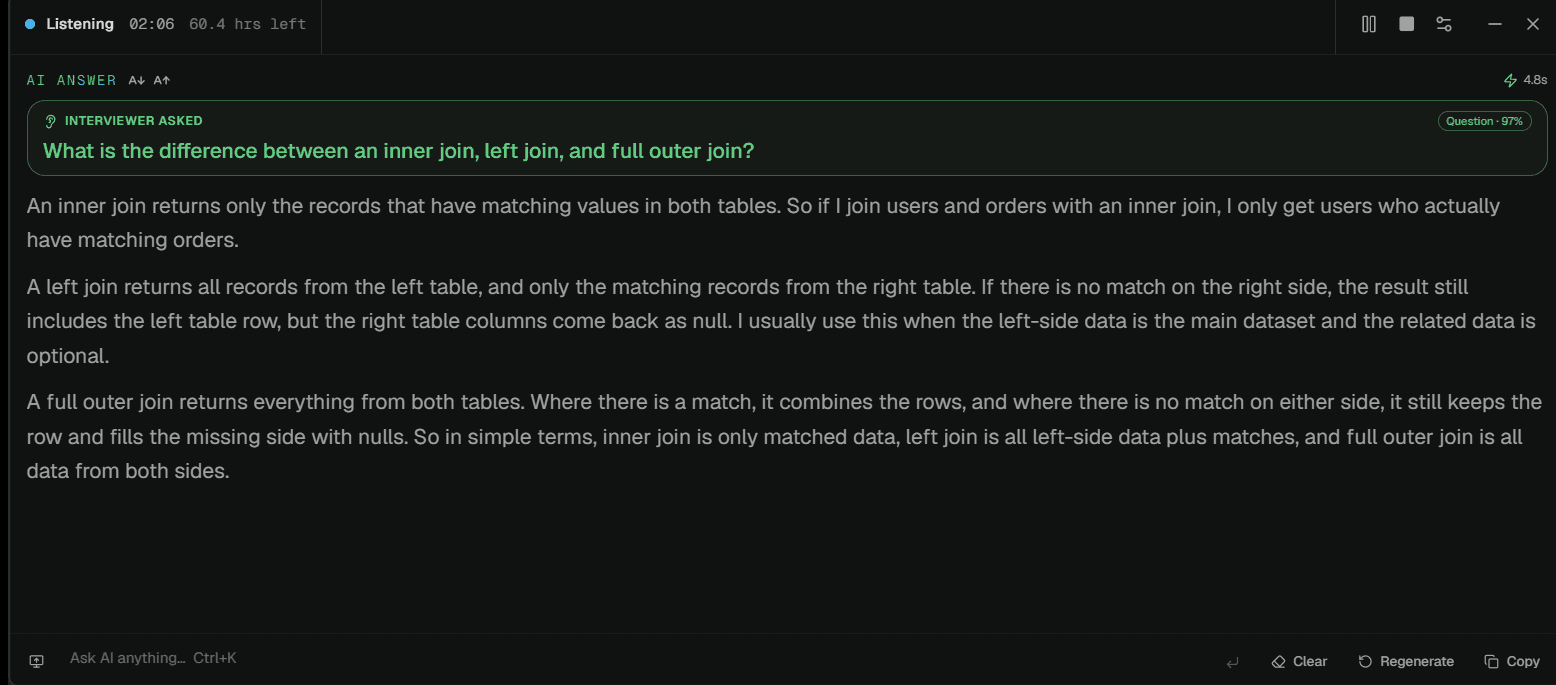
It is listening — The dot and the clock tell you capture is running. Beside them is the balance you have left, so you never have to leave the call to check it.
What it heard — The question it picked out of their speech, with how confident it is that it was a question at all. If this is wrong, the answer under it will be too — which is what the key terms in your session settings are for.
The answer — Streamed in as it is generated, grounded in the document you uploaded. This one is in the “speak as me” tone — first person, ready to say out loud.
Ask your own — Ctrl+K puts the cursor here. Anything you type is answered against the same material.
When it misses — Regenerate takes another run at the same question. Copy lifts the text out. Clear wipes the panel before the next one.
Download and install
Windows 10 and 11, 64-bit. The installer is signed and the app updates itself from then on, so this is the only time you download anything. macOS is not out yet.
Sign in
The app opens your browser to sign in and hands the session straight back — you never type your password into the desktop window. If your browser asks for permission to open the app, that's the handoff, and it's expected.
Let it hear your computer
On first run it needs permission to capture your system audio. Grant it once. If your meeting software is set to route audio to a headset, that still works — the app taps the output, not the speaker.
Learn the window
It is deliberately small. Along the top: a status light, the elapsed time, and how many hours you have left. Below that the answer panel, and along the bottom a composer reading “Ask AI anything…” with Clear, Regenerate and Copy beside it. Drag it anywhere; it remembers where you left it.
Put it on a second monitor if you have one, or tucked into a corner of your call window if you don't. Time spent positioning it before the call is time you don't spend fumbling during one.
Open the settings once
The gear gives you opacity, text size, whether the window floats above everything, and which keys do what. Two of them are worth setting before your first call rather than during it.
- Stealth mode — hides the window from screen sharing and recording. Off by default; see chapter 05.
- Auto-answer — on by default, so detected questions answer themselves. Turn it off if you would rather decide every time a request is spent.
Two keys is the whole interface.
During a call you cannot be reaching for a mouse. The bindings below are the entire live interface, and the two that matter sit next to each other so a finger that finds one has found the other.
- F9Answers what they just asked — even while your call app has focus.
- F10Captures your screen and answers what's on it. The overlay leaves itself out of the picture.
- Ctrl+KJumps to the composer, where you can ask your own question.
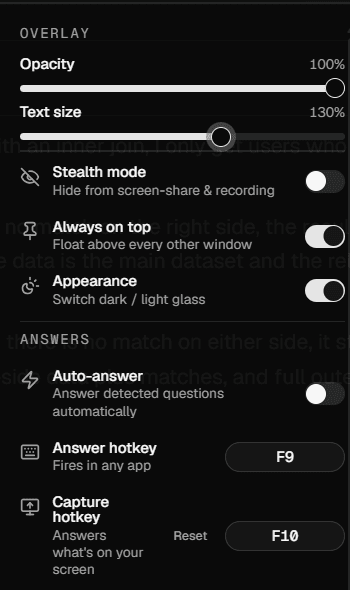
Stealth mode — Hides the window from screen sharing and recording. Off until you turn it on — the one setting worth changing before your first call.
Auto-answer — On by default: a detected question answers itself. Switch it off and nothing is generated until you ask for it.
The answer key — F9 out of the box, and the only binding registered with the operating system — which is what lets it fire while your call app has focus.
The screen key — F10, for questions about something on screen. Reset puts both back if you rebind yourself into a corner.
| Key | Works | Does |
|---|---|---|
| F9 | Anywhere | Answer what they just asked, now — even while your call app has focus. |
| F10 | Anywhere | Answer what's on your screen: a shared diagram, a code question, a slide. |
| Space | In the overlay | The same as F9, when the overlay itself is focused. |
| Ctrl+K | In the overlay | Jump to the composer and ask your own question. |
| Enter | In the composer | Send it. |
| Shift+Enter | In the composer | New line. |
| Esc | In the composer | Clear and step back out. |
Why F9 and F10
They collide with nothing. Zoom's shortcuts start with Alt, Teams' with Ctrl+Shift, and Meet's with Ctrl — while F1, F5, F11 and F12 are already spoken for by every browser. F9 and F10 are the two keys in the room nobody else wants.
You can rebind them
Any key, with or without modifiers, in the app's settings. One thing to understand before you do: while a session is running, the app claims that key from the entire operating system.
Bind a letter key and that letter stops reaching every other app for as long as the session runs — including the one you're typing your code answer into. The app warns you when a binding has that cost. It releases the key the moment you stop the session.
Go live, then forget it's there.
This is the whole run of a call, from the click before it starts to the click after it ends.
Go live on the session
On your dashboard, hit Go live on the session you're about to have. That's what tells the desktop app which conversation this is — it opens on the live session and pulls in that session's document, brief and tone. If the app is already open, it switches over by itself.
Only one session can be live at a time. Going live on a second one quietly takes the first one offline, which is also how you fix it if you armed the wrong one.
Start listening
Start the capture in the app just before the call connects. The status light goes live and the waveform starts moving as soon as it hears them. If the waveform is flat while someone is talking, it isn't hearing the call — see the last chapter.
Let it answer, or ask for one
When it recognises a question it labels it — “Interviewer asked”, with how confident it is — and the answer begins streaming underneath. When it doesn't recognise one, a question phrased as a statement, a follow-up, a pause you want to fill, press F9 and it answers what was just said. If an answer comes back at the wrong angle, Regenerate takes another run at it.
Answering automatically is a setting, and it is on unless you turned it off. With it off, nothing is ever asked until you press the key — which some people prefer, because every answer spends time from your balance.
Ask your own question
Ctrl+K puts your cursor in the composer. Type anything — a clarification, a definition, something you want framed differently — and press Enter. It answers with the same grounding in your material.
Answer what's on screen
If the question is visual — a shared diagram, a snippet of code, a slide — F10 captures your screen and answers what's on it. Available on plans that include screen capture.
The overlay excludes itself from that capture, so an answer already on screen can never be fed back in as if it were part of the question.
Stop when the call ends
Stop the capture. That releases the keyboard shortcut back to your system and stops the clock. Then conclude the session on the website when you're ready to look back at it.
What the other side sees.
A tool like this is worthless if it shows up on the call. Here is exactly what protects you, and — just as importantly — what doesn't.
Turn on stealth mode — it ships switched off
In the app's settings, Stealth mode marks the window as protected content at the operating-system level. With it on, the capture that leaves your machine when you share your screen simply does not contain the overlay — not blurred, not blacked out. Absent. This holds whether you share a single window or your whole display.
Nothing else in this tutorial depends on a setting. This does. Stealth mode is off by default, so if you have not turned it on, the overlay is as visible to a screen share as any other window. Switch it on once, before your first call — it is remembered from then on.
It is always excluded from its own screen capture
When you press F10 to ask about something on screen, the app switches protection on for the duration of the grab and puts your setting back afterwards. So the overlay is never in that image, whether or not you run with stealth mode on.
Nothing is audible, ever
The app has no audio output. It never speaks, never plays a tone, and never touches your microphone, so there is nothing for anyone to hear.
It sits above your call, and stays there
The window floats above other windows so it doesn't get buried mid-question, and you can dial down its opacity so it sits quietly in your peripheral vision instead of demanding your attention.
What it cannot do is hide from a camera. If someone is filming your screen, or you are on a monitored machine with software that records at the hardware level, no application-level protection helps. Be honest with yourself about the room you're in.
What you get to keep.
The session doesn't disappear when the call ends. What was asked, what was answered, and what it cost are all on your dashboard.
Conclude the session
Marking a session done files it into your history and frees you to arm the next one. A concluded session can be brought back to life later if you need it again — a second round with the same company, say.
Read the recap
Every session keeps the questions you were asked and the answers that were generated. Read back through a round to find the questions you fumbled, or to prepare for the next stage with the same people.
Check what it cost
Time is billed against your balance while a capture is running, and stops the moment you stop it. You don't have to wait until afterwards to see it: the overlay's top bar shows the hours you have left, next to the clock, the whole time it is running. Your credits page has the balance, what each session consumed, and your receipts.
Delete anything you'd rather not keep
Any individual session, or your whole history, can be deleted from the dashboard. It goes for good.
Plainly, what happens to your data.
You are pointing this at the most consequential conversations you have. You should know precisely what is kept.
Audio is never retained
Sound is turned into text as it arrives and discarded. There is no recording of your call on our servers or anywhere else, and no way to produce one after the fact.
Your microphone is never opened
Only your computer's audio output is captured. Your own voice never leaves your machine, because it is never picked up in the first place.
Transcripts and documents are yours to delete
The transcript of what the other side said, and the document you uploaded, are stored against your account so you can review a session later. Both can be deleted from the dashboard at any time.
The full detail — legal bases, processors, retention, your rights — is in the Privacy Policy, linked at the bottom of every page.
The things that actually break.
In rough order of how often we see them. If none of these is it, contact support — and say what the status light and waveform were doing, because that narrows it immediately.
The waveform is flat while they're talking
The app isn't receiving your call's audio. Almost always one of:
- The capture hasn't been started — check the control strip, not just that the app is open.
- Your meeting app is routing audio to a device the system isn't playing through. Play any video; if the waveform moves, the call is the odd one out.
- Audio permission was declined on first run. Grant it and restart the app.
Nothing happens when I press F9
The shortcut is only claimed while a capture is running — before that, the key does nothing on purpose. If a capture is running and it still doesn't fire:
- Another application already holds that key system-wide, and whoever registered it first wins. Rebind to another key in settings.
- Some apps run elevated and swallow shortcuts from ordinary ones. If your call app was started as administrator, try it without.
- With the overlay itself focused, Space does the same job — a quick way to tell a bad binding apart from a bad session.
They could see the overlay when I shared my screen
Stealth mode was off. It is the default, and it is the one setting you have to change yourself — the app cannot turn it on for you without also hiding the window from screenshots you actually wanted. Open settings, switch on Stealth mode, and it stays on. Worth checking before a call rather than after one.
It answers before I ask it to
Auto-answer is on by default: a question it detects gets answered without being asked. Turn it off in settings and nothing happens until you press F9 or type into the composer.
It's transcribing, but the words are wrong
Usually specialist vocabulary it has never encountered. Fill in the session's key terms with the names, products and acronyms you expect to hear and it will start getting them right. Heavy background noise and a poor connection on their end also degrade it, and neither is something the app can fix.
The answers don't sound like me
Two dials. Switch the tone to Speak as me if you want something you can say out loud. And check that the session is using the right document — an answer grounded in the wrong CV will be fluent and useless.
It's answering about the wrong job
The app attaches to whichever session is live. Open your dashboard and check which one that is — going live on the right session takes the wrong one offline automatically.
It says I need to update
A version too old to talk to the current backend is blocked rather than allowed to fail confusingly mid-call. The app updates itself on restart; close it fully and reopen. Do this the day before, not ten minutes beforehand.
It won't start a session — no capacity
Live transcription runs against a finite pool of concurrent slots and they were all in use. It clears as sessions end. If you hit this repeatedly at a time you need, tell us — capacity is something we add, but only when we know where the pressure is.
F10 does nothing
Screen capture is included on some plans and not others. Your plan's page will say. Everything else — F9, the composer, live answers — works regardless.