Live AI answers on your phone, with a remote built in
Second Screen puts inneedai's live answers on your phone. Scan a QR code with the phone's camera — no app to install — and the question and the answer stream to it from the Windows app, with Answer now and Clear buttons, so the phone works as a remote as well as a screen.
Your phone is a remote, not just a screen.
Every button on the phone runs the overlay's own action, on the computer that's running the session. Take the phone tour — it's the real page, mid-call.
- Answer now works mid-sentence: it waits for them to finish, and a second tap answers at once.
- Every tap is confirmed. If the computer doesn't reply within a few seconds, the phone says so.
- Each phone that follows gets the same view and the same buttons.
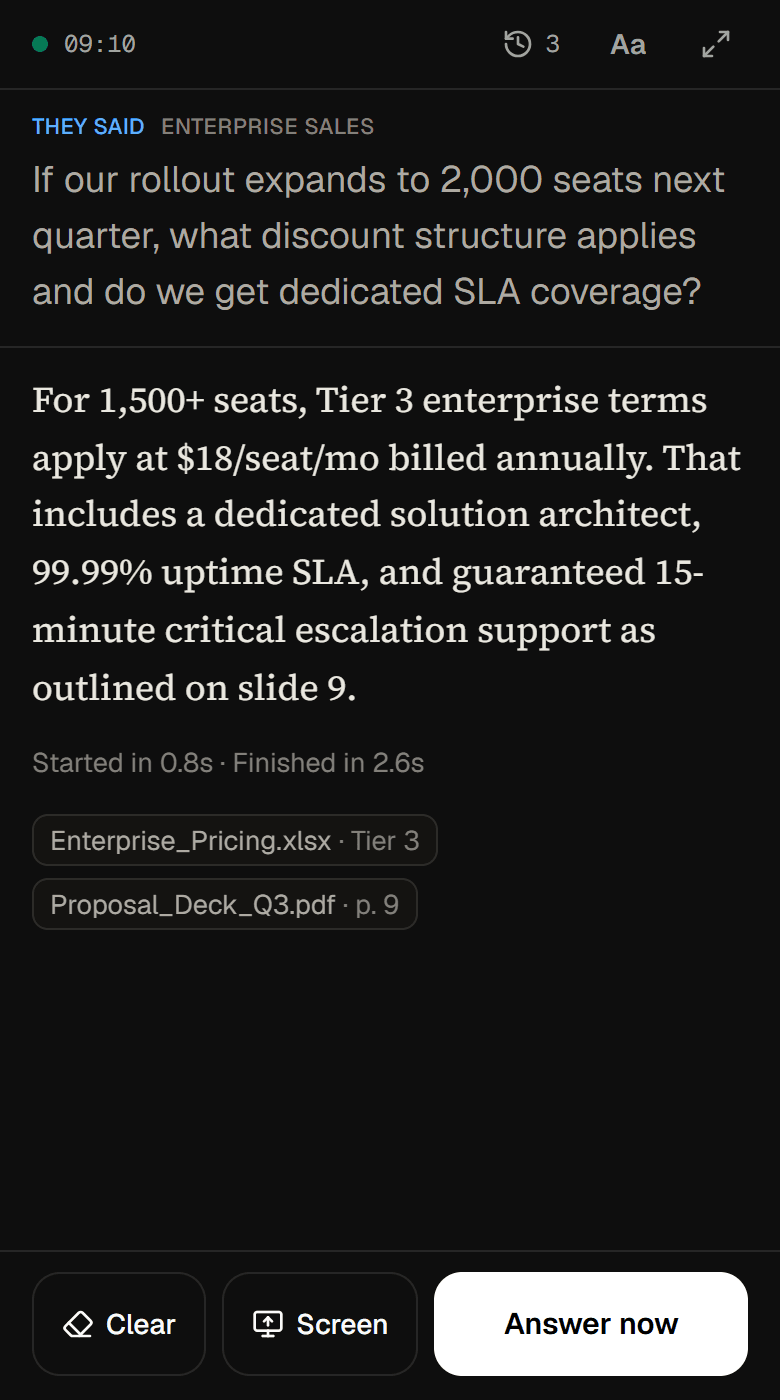
Answer now — Tap it while they're still talking and it answers the moment they finish; tap again to answer right away. It is the overlay's own Answer now, run on your computer.
Clear — Throws away the question it's holding, so the next answer starts from what they say next.
Screen — Asks your computer to read your screen and answer what's on it. It appears on plans with screen capture; with several monitors, you pick one on the computer.
The answer, as it streams — The overlay's answer, word for word, with how fast it started and finished and which of your documents it came from.
Earlier answers — Every finished answer from the session, one tap away, so the live screen only ever holds the current one.
The link — Green and counting while the session runs. If the phone loses its connection the dot turns amber, so an old answer never passes for a new one.
Set it up in four steps.
- 01
Tick “Also show answers on my phone”
It's in the Go live window when you start a session from the website. Already live? Press the phone icon on the desktop overlay instead.
- 02
Scan the code with your phone
Point the phone's camera at the QR code. The session opens in the phone's browser — nothing to install, no account to sign in to.
- 03
Press Play in the desktop app
The phone says it's connected and waits for the call. From then on, the question and the answer appear on it as they stream.
- 04
Glance, or tap
Read along on the phone, or call for an answer with Answer now. When you're done, Stop sharing on your computer ends the link.
Wi-Fi and the internet, at the same time.
Your computer sends every update two ways at once, and the phone shows whichever copy arrives first.
A direct link
Over your Wi-Fi when the phone and the computer share one. It's the fastest way there.
An internet relay
For mobile data, or a phone on another network. The relay only ever carries encrypted messages.
One drops, the other carries on
Lose one route and the other keeps the answers coming. Lose both and the phone says “Connection lost — reconnecting” rather than letting an old answer pass for a new one.
Who can see it.
Encrypted on both routes
Every message between your computer and your phone is encrypted with AES-256-GCM, whichever way it travels.
The phone never sends the key
It rides in the part of the link after the #, which browsers keep to themselves, and the phone page moves it out of the address bar as soon as it opens.
The link works like a password
Anyone holding it can follow the session and press its buttons until the session ends or you press Stop sharing. Going live again makes a new code.
Mind your screen share
With stealth mode off, the code on your overlay shows up in a screen share. Scan it before you share, or switch stealth mode on.
No tracking on the phone
The phone page runs no analytics or session recording, and search engines are told to stay out of it.
Second Screen changes where you read an answer, not how it is made: transcription and answers work exactly as in any other session. Privacy Policy
One phone, four kinds of call.
Sales calls
Share your whole screen for a demo while pricing and objection answers arrive on your phone instead of over your slides.
Client meetings
Keep the call and your notes full size on your computer, and read the answer from the phone beside it.
Job interviews
Leave your computer screen to the call itself, with the answer drawn from your résumé on your phone.
Viva practice
Rehearse with a friend playing the examiner, and read the answers drawn from your thesis on your phone.
What you need.
Second Screen is included on Power. The Screen button also needs a plan with screen capture.
- The inneedai app on a Windows 10 or 11 PC (64-bit), running the session — the phone shows what it hears, and listens to nothing itself
- A phone with a current browser: Safari on iPhone or Chrome on Android, with no app and no sign-in
- Wi-Fi or mobile data — it's fastest when both devices share one Wi-Fi network
- For the Screen button: a plan with screen capture, a model that reads images, and desktop app 1.0.67 or later
Other apps call it dual-device mode.
Several interview apps can show answers on a phone. We compared how each one connects, what its phone can do and where it runs, with links to their own pages.
Second Screen: common questions
Do I need to install an app on my phone?
No. Scan the QR code with your phone's camera and the session opens in the phone's browser — nothing to install and no account to sign in to. The listening is done by the inneedai app on your Windows PC; the phone shows the result and sends your taps back.
Does my phone have to be on the same Wi-Fi as my computer?
No. It's fastest on the same Wi-Fi, but mobile data works too. Every update goes over a direct link and an internet relay at the same time, and the phone shows whichever copy arrives first.
Can I ask for an answer from my phone?
Yes. Answer now on the phone does exactly what it does on the overlay: tapped while they're still speaking, it answers the moment they finish; tapped again, it answers at once. Clear works the same way, and so does Screen on plans with screen capture.
Is Second Screen the same as a dual-device mode?
It's the same idea: your computer runs the call and does the listening, and your phone shows the answers. Other apps call it dual-device mode or phone mode. In inneedai it's Second Screen, and the phone is a remote as well as a screen.
How the apps compareWhich plans include Second Screen?
Second Screen is included on Power. The Screen button also needs a plan that includes screen capture.
Plans and pricingCan more than one phone follow the same session?
Yes. Everyone who scans the code sees the same live view and gets the same buttons, so share it only with people you'd hand your keyboard to. The link stops working when the session ends or you press Stop sharing.
What happens if my phone loses its connection?
The session carries on on your computer either way. The phone marks what it shows as possibly out of date — “Connection lost — reconnecting” — and catches up as soon as either route is back.
Try it on your next call.
Start on the free plan, then move up when you need more live hours. The app runs on Windows 10 and 11, 64-bit.